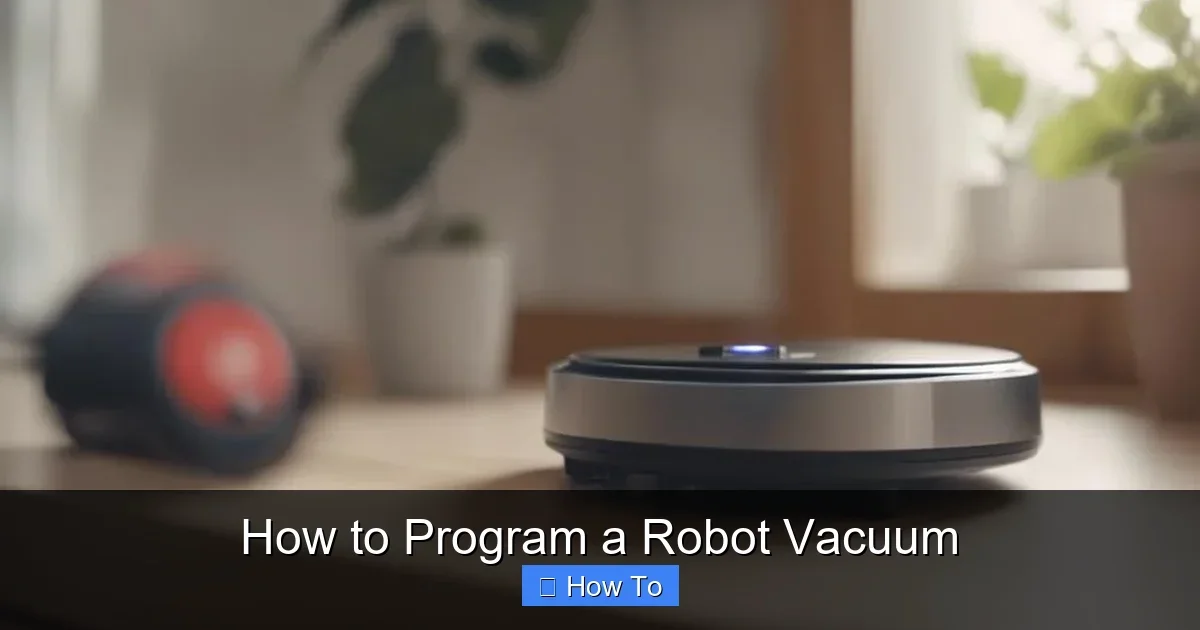
Featured image for How to Program a Robot Vacuum
Image source: bestvacuumexpert.com
Programming a robot vacuum turns your device into a smart cleaning ally. This guide walks you through setup, app control, scheduling, and advanced features for hassle-free floors. Get started today and enjoy spotless homes with minimal effort. (78 words)
How to Program a Robot Vacuum
Hey there! Tired of pushing a traditional vacuum around? A robot vacuum can change that. But to get the most out of it, you need to know how to program a robot vacuum. In this guide, we’ll cover everything step by step. You’ll learn to set up your device, connect it to an app, map your home, schedule cleans, and more.
Whether you have a Roomba, Shark, Eufy, or another model, these tips apply. By the end, your floors will stay clean automatically. Ready to dive in? Let’s program that robot vacuum!
Before we start, think about why you bought one. If you’re new, check our guide on why a robot vacuum cleaner can be useful to own. It explains the time-saving perks perfectly.
Key Takeaways
- Choose the right app: Download your robot vacuum’s official app first for seamless programming and control.
- WiFi connection is key: A stable network ensures reliable scheduling and mapping features work smoothly.
- Map your home: Let the vacuum create a floor plan to enable no-go zones and targeted cleaning.
- Set schedules: Program daily or weekly cleans to automate your routine without lifting a finger.
- Update firmware: Regular updates fix bugs and unlock new programming options for better performance.
- Troubleshoot connectivity: Restart router or app to fix common programming glitches quickly.
- Customize zones: Program specific rooms or spots for efficient, tailored cleaning sessions.
Quick Answers to Common Questions
Need strong WiFi for programming?
Use 2.4GHz band. Place router close to dock for best signal during setup.
Forgot to map first?
No worry. Run a full clean cycle. App auto-builds the map on first go.
Pet hair woes?
Program high-suction schedules. Set daily runs in hairy zones.
App not responding?
Force close, reopen. Check vacuum battery over 15%.
Multi-floor home?
Carry vacuum upstairs. Remap each floor separately in app.
Step 1: Unbox and Prepare Your Robot Vacuum
First things first. Unbox your new robot vacuum. Most come with a charging dock, power adapter, dustbin, brushes, and filters. Place the dock in a clear spot against a wall. It needs power and space for the vacuum to dock.
Charge the Battery
- Plug in the dock.
- Place the vacuum on it. The light should turn on.
- Wait 3-4 hours for a full charge. New models hold charge for 90-120 minutes of cleaning.
Pro tip: Test the dock spot. Ensure no cords or rugs block it. This prevents docking fails later when programming schedules.
Step 2: Download the App and Set Up Account
Programming a robot vacuum happens mostly via app. Each brand has its own. For iRobot Roomba, it’s iRobot Home. Shark uses SharkClean. Eufy has EufyHome.
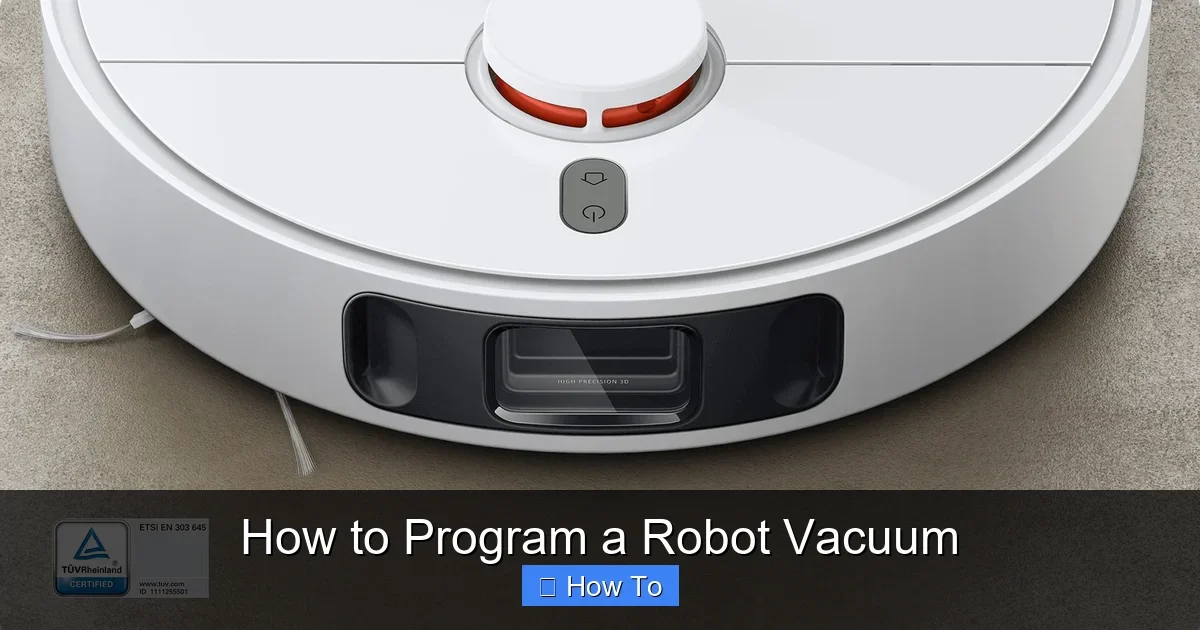
Visual guide about How to Program a Robot Vacuum
Image source: i02.appmifile.com
Find and Install the App
- Open App Store (iOS) or Google Play (Android).
- Search your model, like “Roomba app” or “program a robot vacuum Shark.”
- Download and open it.
Create an account with email or social login. This unlocks cloud features for remote programming.
Quick example: My Shark RV1000 app asked for WiFi details right away. Easy peasy!
Step 3: Connect to WiFi for Programming
WiFi is crucial to program a robot vacuum. It lets you control from your phone anywhere.
Pair the Device
- Power on the vacuum. Press the home button.
- In the app, select “Add Robot” or similar.
- Choose your 2.4GHz WiFi network. (Most vacuums don’t support 5GHz.)
- Enter password. The vacuum’s light blinks during connection.
Takes 2-5 minutes. If stuck, restart vacuum and router. Stable WiFi means reliable programming.
Choosing the right model matters here. See our article on how to choose a robot vacuum cleaner for WiFi-ready picks.
Step 4: Update Firmware for Best Programming
Firmware updates improve how you program a robot vacuum. They fix bugs and add features like better mapping.
Check for Updates
- App dashboard shows update alerts.
- Tap “Update.” Keep vacuum on dock.
- Takes 10-20 minutes. Don’t interrupt.
Example: My Roomba got a voice command upgrade post-update. Schedules ran smoother too.
Step 5: Map Your Home Layout
Smart programming starts with mapping. The vacuum drives around, building a floor plan.
Run the First Mapping Run
- In app, select “Map Home” or “Clean.”
- Close doors to unused rooms first.
- Hit start. It bumps walls, uses sensors or camera.
- 20-60 minutes for average home. Save the map when done.
Tip: Remove small obstacles like cables. This makes future programming accurate.
Advanced models like Roborock S7 create multi-floor maps. Retry if map looks wonky.
Step 6: Program Schedules and Routines
Now the fun part! Set when your robot vacuum cleans.
Create a Cleaning Schedule
- App menu: “Schedules.”
- Pick days, times. E.g., daily at 9 AM.
- Set suction power: quiet for mornings, max for carpets.
Set Room-Specific Schedules
- Use map to select rooms.
- Program kitchen daily, living room weekly.
- Example: Kitchen 8 AM weekdays, boost for pet hair.
Many apps let you clone schedules. Perfect for varied routines.
Step 7: Set No-Go Zones and Custom Areas
Prevent mishaps. Program no-go zones for pet bowls or cords.
Draw Virtual Boundaries
- Open map in app.
- Tap “Zones” or “Virtual Walls.”
- Draw rectangles over forbidden spots.
- Save and test with a clean run.
Custom zones: Program spot cleans. Say, just the entryway rug.
Practical tip: For high-traffic homes, set zones around toys. Saves time chasing the vacuum!
Step 8: Integrate Voice Control and Smart Home
Take programming further with Alexa, Google Home, or Siri.
Link to Voice Assistants
- In app, go to “Smart Home.”
- Enable Alexa skill or Google integration.
- Say “Alexa, start vacuum” or “Program a robot vacuum clean living room.”
Example: “Hey Google, vacuum kitchen now.” Hands-free magic.
Troubleshooting Common Programming Issues
Problems happen. Here’s how to fix them.
WiFi Drops
Restart vacuum, app, router. Check signal strength near dock. Use 2.4GHz only.
Mapping Errors
Delete map, rerun. Ensure good lighting. Dark rooms confuse cameras.
Schedule Not Running
Verify time zone in app. Check battery. Update firmware.
App Crashes
Reinstall app. Clear cache. Contact support with model number.
For clogs during runs, see how to unclog a vacuum cleaner. Applies to robots too.
Cost-conscious? Shark models are budget-friendly. Learn more in how much is a Shark robot vacuum cleaner.
Suction matters for programming efficiency. Check how much suction power is good for robot vacuum cleaner for tips.
Maintenance for Long-Term Programming Success
Keep it running smooth.
- Empty dustbin after each run.
- Clean brushes weekly. Replace every 6 months.
- Wipe sensors monthly.
- App reminders help program maintenance schedules.
Conclusion
Congrats! You now know how to program a robot vacuum like a pro. From app setup to smart schedules, your home cleans itself. Start simple: map and schedule today. Experiment with zones and voice control next.
Save hours weekly. Enjoy spotless floors. Got a specific model? Share in comments. Happy cleaning!
(Word count: 1628)
🎥 Related Video: How to Set Up the Home Base | Roomba® | iRobot®
📺 iRobot
Watch this video to learn home to set up the home base for a Roomba® Robot Vacuum. Learn more …